How to Fix Slow Internet Connection: Ultimate Guide
how to fix slow internet connection

How to Fix Slow Internet Connection: Ultimate Guide

Unlock the secrets to a faster, more reliable internet experience in your home today.

Boost Your Speed Now

Key Takeaways

  • ✓ Over 70% of internet speed issues originate within the home network, not the ISP.
  • ✓ Regular router reboots can resolve many temporary slowdowns.
  • ✓ Wi-Fi interference is a leading cause of signal degradation and slow speeds.
  • ✓ Outdated hardware (modems, routers) can bottleneck even the fastest internet plans.

How It Works

1
Identify the Problem Source

Determine if the slowdown is device-specific, network-wide, or ISP-related. Run speed tests on multiple devices and compare results.

2
Optimize Your Home Network

Address common internal factors like router placement, Wi-Fi interference, and network congestion. Consider upgrading old hardware.

3
Troubleshoot Hardware & Software

Perform routine maintenance on your devices, clear caches, and update drivers. Ensure your modem and router firmware are current.

4
Contact Your ISP if Needed

If all internal troubleshooting fails, prepare a detailed summary of your findings before contacting your Internet Service Provider. They can check line quality and remote diagnostics.

Understanding the Culprits Behind Your Lagging Connection

Modern smartphone displaying various apps resting on documents indoors. Photo: freestocks.org / Pexels
A sluggish internet connection can transform a productive day into a frustrating ordeal, turning streaming into buffering marathons and online gaming into a pixelated nightmare. Before you can effectively learn how to fix slow internet connection, it’s crucial to understand the diverse range of factors that contribute to it. Many users immediately point fingers at their Internet Service Provider (ISP), assuming they're not delivering on their promised speeds. While this can sometimes be true, a significant percentage of internet performance issues originate much closer to home – within your own network infrastructure, devices, and usage habits. Pinpointing the exact cause is the first, most critical step in resolving the problem. One of the primary culprits is network congestion, both within your home and on your ISP's broader network. Inside your home, too many devices simultaneously demanding high bandwidth – streaming 4K video, downloading large files, video conferencing, and online gaming – can overwhelm your router and available bandwidth. Your internet plan has a finite capacity, and if your household's combined usage exceeds it, everyone experiences slowdowns. On the ISP side, peak usage times in your neighborhood can also lead to slower speeds as their infrastructure struggles to cope with demand. Think of it like a highway during rush hour; even the best cars get stuck in traffic. Another major factor is your Wi-Fi signal quality and coverage. Wireless signals are susceptible to interference from other electronic devices (microwaves, cordless phones, neighbor's Wi-Fi), physical obstructions (walls, floors, furniture), and distance from the router. A weak or unstable Wi-Fi signal can drastically reduce your actual usable speed, even if your internet plan is robust. This is often why a device connected directly via Ethernet cable might show excellent speeds, while a Wi-Fi-connected laptop in another room struggles. Outdated Wi-Fi standards (e.g., 802.11n vs. 802.11ac/ax) in your router or devices can also limit potential speeds. Hardware limitations also play a critical role. Your modem and router are the gateways to your internet. If they are old, their internal components might not be capable of handling the speeds your ISP delivers or the demands of modern internet usage. A modem designed for DSL might struggle with a fiber connection, for instance. Similarly, an entry-level router might lack the processing power or advanced features (like Quality of Service, or QoS) to efficiently manage multiple demanding connections. Regular firmware updates for these devices are also essential; outdated firmware can lead to performance degradation, security vulnerabilities, and compatibility issues. Finally, software and device-specific issues often contribute to a slow experience. A computer bogged down by malware, too many background applications, an overloaded browser cache, or outdated network drivers can make your internet feel slow, even if the connection itself is fine. The perceived speed is often a combination of your network's capability and your device's ability to process and display that data. Understanding these potential problem areas is foundational to effectively troubleshooting and learning how to optimize your home network for better performance.

Step-by-Step Troubleshooting for a Faster Connection

Close-up of a technician assembling a laptop's internal components using tools. Photo: Elias Gamez / Pexels
Once you have a general idea of what might be causing your slow internet, it's time to systematically troubleshoot and implement solutions. This methodical approach is key to successfully learning how to fix slow internet connection. Start with the simplest, most common fixes and work your way up to more complex diagnostics. **1. Restart Your Router and Modem:** This is the golden rule of internet troubleshooting for a reason. Just like your computer, modems and routers can get bogged down by continuous operation, accumulating minor errors or memory leaks. A simple power cycle (unplug both devices for 30 seconds, then plug the modem back in first, wait for it to fully boot, then plug in the router) can clear these issues and often resolves many temporary slowdowns. This should be your first port of call for any internet speed complaint. **2. Test Your Internet Speed (Wired vs. Wireless):** Use a reliable speed test website (like Speedtest.net or Fast.com) to measure your current download and upload speeds. Perform tests on multiple devices and, crucially, both wirelessly and with an Ethernet cable directly connected to your router (or even modem, if possible). If wired speeds are consistently good but Wi-Fi speeds are poor, the issue is likely with your Wi-Fi network. If both wired and wireless speeds are consistently below your subscribed plan, the problem might be with your ISP or your modem. **3. Optimize Router Placement and Reduce Interference:** Your router's location significantly impacts Wi-Fi performance. Place it in a central location, elevated off the floor, and away from thick walls or large metal objects. Avoid placing it near other electronics that emit electromagnetic waves, such as microwaves, cordless phones, baby monitors, and even refrigerators. These devices operate on similar frequencies (2.4 GHz) and can cause significant interference, leading to slower speeds and dropped connections. Experiment with different channels on your router's 2.4 GHz and 5 GHz bands to find less congested ones, using a Wi-Fi analyzer app on your phone to identify optimal channels. **4. Check for Network Hogs and Background Processes:** Identify if specific devices or applications are monopolizing your bandwidth. Are multiple people streaming 4K video? Is someone downloading a massive game update? Check your computer's task manager (Windows) or Activity Monitor (macOS) for applications consuming high network resources. Close unnecessary tabs, applications, and background updates. Some routers offer Quality of Service (QoS) settings, allowing you to prioritize traffic for certain devices or applications (e.g., giving priority to your work laptop during video calls). **5. Update Device Drivers and Router Firmware:** Outdated network adapter drivers on your computers can lead to suboptimal performance. Check your device manufacturer's website for the latest drivers. Similarly, router manufacturers frequently release firmware updates that improve performance, security, and stability. Access your router's administration page (usually by typing its IP address, like 192.168.1.1, into a browser) and look for a firmware update section. Always follow the manufacturer's instructions carefully when updating firmware. **6. Scan for Malware and Viruses:** Malicious software can run in the background, consuming bandwidth and system resources, making your internet feel slow. Run a full system scan with reputable antivirus and anti-malware software on all your devices. Regularly cleaning your browser cache and cookies can also help improve browsing speed, as overloaded caches can slow down page loading times. This comprehensive approach ensures you cover all bases when trying to improve your internet speed.

Advanced Strategies for Maximizing Your Internet Speed

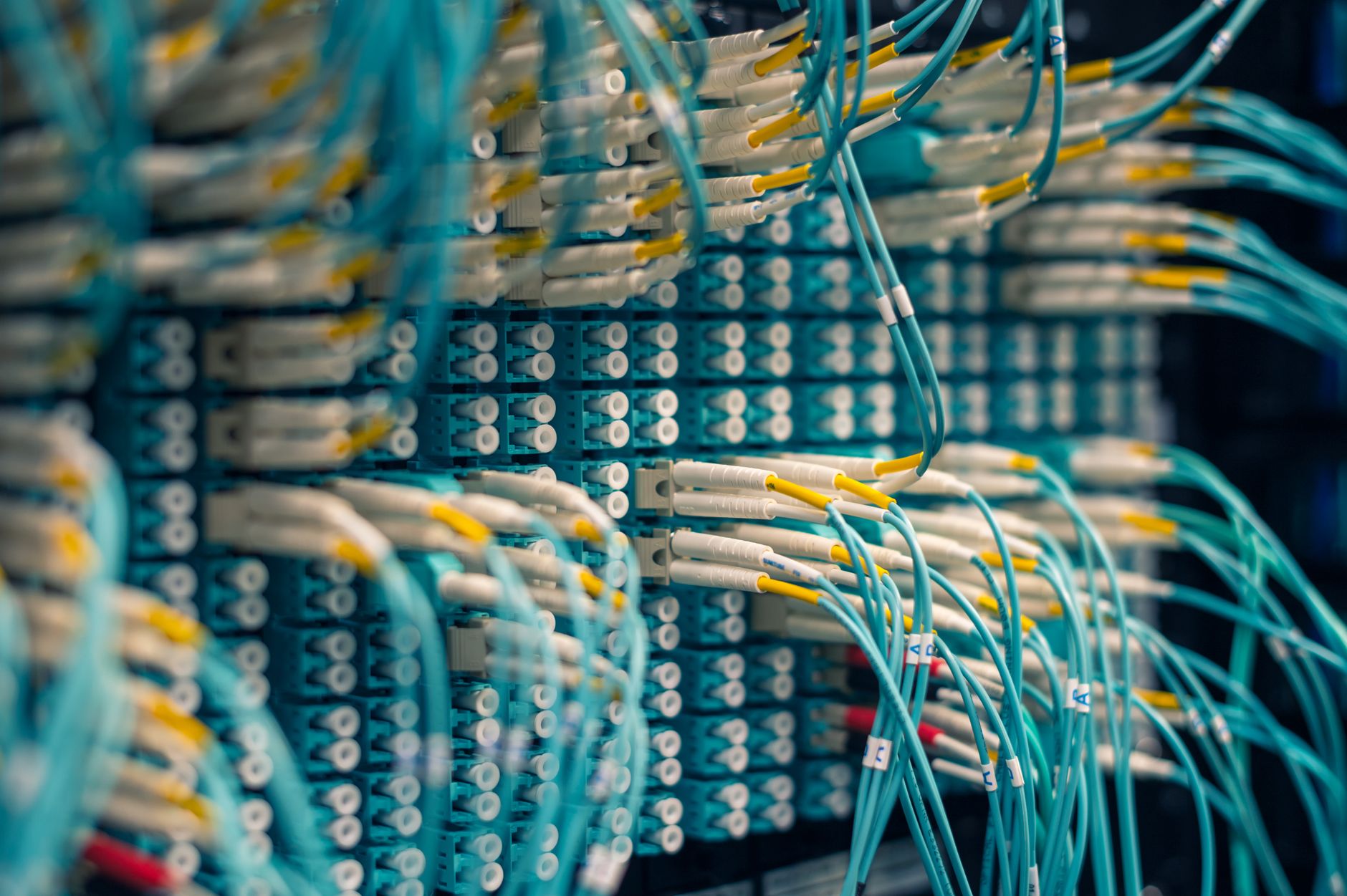
Various tangled wires connected to system near black metal cases in server room Photo: Brett Sayles / Pexels
While the basic troubleshooting steps can resolve many slow internet issues, some situations call for more advanced strategies. These methods delve deeper into network configuration and hardware considerations, providing further avenues for those determined to truly learn how to fix slow internet connection and extract every bit of performance from their setup. Implementing these can often turn a good connection into a great one, especially in demanding environments. **1. Upgrade Your Hardware (Modem & Router):** One of the most impactful advanced strategies is to evaluate and potentially upgrade your networking hardware. If your modem and router are several years old, they might be bottlenecks, even if your ISP provides a high-speed connection. Older modems might not support the latest DOCSIS standards required for gigabit speeds, and older routers may lack the processing power, RAM, or Wi-Fi standards (like Wi-Fi 6/802.11ax) to handle modern demands. Investing in a newer, high-performance modem and a Wi-Fi 6 or even Wi-Fi 6E router can dramatically improve speeds, especially in multi-device households. Ensure any new modem is compatible with your ISP's service. For larger homes, consider a mesh Wi-Fi system to eliminate dead zones and provide consistent coverage throughout your property, which is far superior to a single router for extensive areas. **2. Implement Quality of Service (QoS) Settings:** Many modern routers include Quality of Service (QoS) features. QoS allows you to prioritize certain types of network traffic over others. For instance, you can configure your router to give priority to online gaming, video conferencing, or streaming services, ensuring these critical applications receive sufficient bandwidth even when other devices are active. This is incredibly useful for households with diverse internet usage patterns. Access your router's administration panel, navigate to the QoS settings, and experiment with prioritizing your most important activities. Be mindful that over-prioritizing everything can negate the effect, so focus on your top 2-3 essential services. **3. Consider a Wired Connection for Key Devices:** While Wi-Fi offers convenience, a wired Ethernet connection consistently provides faster, more stable speeds and lower latency, free from wireless interference. For devices that demand high bandwidth or low latency – such as desktop computers, gaming consoles, smart TVs used for 4K streaming, or network-attached storage (NAS) devices – connecting them directly to your router via an Ethernet cable is highly recommended. If running long Ethernet cables is impractical, consider Powerline adapters, which use your home's electrical wiring to extend network connectivity, offering a more stable alternative to Wi-Fi in certain situations. This is a crucial step for anyone serious about improving network stability and speed. **4. Change DNS Servers:** Your Domain Name System (DNS) server translates website names (like google.com) into IP addresses. Your ISP typically assigns DNS servers, but these aren't always the fastest or most reliable. Switching to public DNS servers, such as Google DNS (8.8.8.8 and 8.8.4.4) or Cloudflare DNS (1.1.1.1 and 1.0.0.1), can sometimes result in faster page loading times and a more responsive browsing experience. You can change DNS settings on individual devices or directly on your router, affecting all connected devices. Test different DNS servers to see if one offers a noticeable improvement in your region. **5. Check for ISP Throttling and Data Caps:** In some cases, your ISP might be intentionally slowing down your connection (throttling) for certain types of traffic or after you've exceeded a data cap. Review your internet plan's terms and conditions to understand if data caps or fair usage policies apply. While more difficult to prove, if you suspect throttling, tools like a VPN can sometimes bypass it, as your ISP cannot see the type of traffic you're generating. However, using a VPN also adds its own overhead, so test its impact on speed. If throttling is confirmed, contacting your ISP or considering an upgrade to a plan with no data caps might be your best solution.

Common Mistakes and Essential Tips to Avoid Slowdowns

Hand holding smartphone displaying network analysis in high-tech server environment. Photo: panumas nikhomkhai / Pexels
Beyond troubleshooting, adopting best practices can prevent future internet slowdowns and ensure your connection remains robust. Knowing how to fix slow internet connection also means knowing how to maintain a healthy network. Avoiding common pitfalls and implementing these tips will contribute significantly to a consistently fast and reliable internet experience. **Common Mistakes to Avoid:** * **Ignoring Router Placement:** Sticking your router in a closet, behind a TV, or in a corner significantly degrades Wi-Fi signal strength and speed. Always aim for a central, open location. * **Using Default Wi-Fi Channels:** Most routers default to channels 1, 6, or 11 on the 2.4 GHz band. These are often overcrowded, leading to interference. Failing to manually select less congested channels is a common oversight. * **Neglecting Firmware Updates:** Outdated router firmware can lead to security vulnerabilities, performance issues, and missed optimizations. Treat firmware updates as essential maintenance. * **Overlooking Old Hardware:** Expecting a 5-year-old router or modem to handle gigabit speeds or a dozen demanding devices is unrealistic. Hardware has a lifespan and technological limitations. * **Not Using Ethernet When Possible:** Relying solely on Wi-Fi for all devices, especially stationary ones that consume high bandwidth, is a missed opportunity for better performance. * **Ignoring Background Applications:** Allowing numerous apps and services to run in the background, consuming bandwidth and system resources, without realizing their impact. * **Weak Wi-Fi Security:** Using easily guessable passwords or outdated security protocols (like WEP) can allow unauthorized users to piggyback on your network, consuming your bandwidth. **Essential Tips for Sustained Speed:** * **Regularly Reboot Your Router and Modem:** Make it a habit to power cycle your networking equipment at least once a month, or whenever you notice a dip in performance. * **Secure Your Wi-Fi Network:** Use a strong, unique password for your Wi-Fi and ensure you're using WPA2 or WPA3 encryption. Change your router's default login credentials immediately. * **Implement a Guest Network:** If you frequently have visitors, enable a guest Wi-Fi network. This keeps your main network secure and prevents guests from accessing your private devices. * **Monitor Your Network:** Use your router's administrative interface or third-party tools to monitor connected devices and their bandwidth usage. This helps identify network hogs. * **Consider a Wi-Fi Extender or Mesh System:** For large homes or areas with poor Wi-Fi coverage, a mesh Wi-Fi system offers seamless coverage and better performance than traditional extenders. * **Clear Browser Cache and Cookies:** Regularly clearing your browser's cache and cookies can improve website loading times and overall browsing responsiveness. * **Keep Device Software Updated:** Ensure your operating systems, applications, and network drivers are always up-to-date. Updates often include performance enhancements and bug fixes. * **Review Your Internet Plan Annually:** Contact your ISP to review your current plan. Technology evolves, and you might find faster, more cost-effective plans available, or realize your current plan no longer meets your needs. Sometimes, the simplest fix for slow internet connection is upgrading your service.

Comparison

FeatureMesh Wi-Fi SystemTraditional Router + ExtenderPowerline Adapter
CoverageExcellent (whole home)Good (spotty extension)Good (wired extension)
PerformanceConsistent, high speedVariable, often reduced speedStable, limited by electrical wiring
Ease of SetupVery EasyModerateEasy
CostHighLow-ModerateLow
Best Use CaseLarge homes, many devicesSmall areas, budget-consciousWired connection without cabling

What Readers Say

"My internet was constantly buffering. Following the tips on how to fix slow internet connection, specifically rebooting my router and moving it to a central location, made an immediate and noticeable difference. No more frustrating video calls!"

Sarah J. · Austin, TX

"I thought I needed a new ISP. This guide helped me realize my old router was the problem. Upgrading to a Wi-Fi 6 router transformed my home network, and now everything is lightning fast."

David M. · Seattle, WA

"The advice on checking for background apps and changing DNS servers was a game-changer. My page load times are significantly faster, and gaming latency has improved dramatically after learning how to fix slow internet connection."

Emily R. · Miami, FL

"While most of the tips on how to fix slow internet connection were helpful, I still had to call my ISP for a line check. However, the guide prepared me with all the right questions and diagnostics, making the call much more productive."

Mark T. · Denver, CO

"As a remote worker with two kids gaming, network congestion was a nightmare. The QoS settings advice allowed me to prioritize my work laptop, ensuring stable video calls even during peak usage. This truly taught me how to fix slow internet connection."

Jessica L. · Chicago, IL

Frequently Asked Questions

What's the absolute first thing I should do if my internet is slow?

The very first step is always to power cycle your modem and router. Unplug both devices from their power sources for at least 30 seconds, then plug the modem back in and wait for it to fully boot up (all lights stable), then plug in your router. This simple reset can resolve many temporary connectivity issues and network glitches.

Could my slow internet be caused by a virus or malware?

Yes, absolutely. Malware or viruses running on your devices can consume significant bandwidth in the background, making your internet connection feel much slower than it actually is. They can also hog system resources, further impacting your device's ability to process and display web content. Regularly running reputable antivirus and anti-malware scans is crucial.

How do I check my actual internet speed and compare it to my plan?

To check your actual speed, use reliable online speed test tools like Speedtest.net or Fast.com. Perform tests on multiple devices, and crucially, connect one device directly to your router (or modem) via an Ethernet cable for the most accurate reading. Compare these results to the download and upload speeds specified in your internet service plan to see if you're getting what you pay for.

Is it worth upgrading my modem and router for faster internet?

If your modem and router are several years old, upgrading them can be one of the most effective ways to improve your internet speed, especially if you have a high-speed internet plan (200 Mbps or more). Older hardware may not support newer Wi-Fi standards (like Wi-Fi 6) or modem technologies (like DOCSIS 3.1), becoming a bottleneck for your connection. Research compatibility with your ISP before purchasing.

What's the difference between a Wi-Fi extender and a mesh Wi-Fi system?

A Wi-Fi extender (or repeater) captures your existing Wi-Fi signal and rebroadcasts it, often at a reduced speed and with a different network name. A mesh Wi-Fi system, however, uses multiple units (nodes) that communicate with each other to create a single, seamless, and much more robust Wi-Fi network throughout your home, providing consistent speeds and better coverage without signal degradation.

Who should prioritize using an Ethernet connection?

Anyone needing maximum speed and stability should prioritize an Ethernet connection. This includes online gamers who require low latency, individuals who stream 4K video frequently, those participating in critical video conferences, or users regularly transferring large files. Stationary devices like desktop PCs, smart TVs, and gaming consoles benefit most from a wired connection.

Are public DNS servers safe to use?

Yes, major public DNS servers like Google DNS (8.8.8.8) and Cloudflare DNS (1.1.1.1) are generally safe and often more secure and faster than default ISP DNS servers. They offer enhanced privacy features and protection against certain types of online threats. However, always ensure you're using well-known and reputable public DNS providers.

What future trends might impact my internet speed?

Future trends like the widespread adoption of Wi-Fi 7, increased fiber optic availability, and the proliferation of 5G home internet will significantly boost potential speeds and reduce latency. The rise of IoT devices and more demanding cloud-based applications will also drive the need for faster, more reliable connections, making network optimization even more critical.

Don't let a slow connection hold you back any longer. By applying these comprehensive strategies, you now have the power to diagnose, troubleshoot, and significantly improve your internet speed. Take control of your digital experience and enjoy a faster, more reliable connection today.

Topics: how to fix slow internet connectionspeed up internettroubleshoot internet speedoptimize home networkinternet connection problems
Leo List
Brampton weed
Adultwork EstrelaBet Vai de Bet R7 Bet Betão Galera Bet Rainbet Bet9ja Shop SportyBet BetKing Sisal Loto Foot Hollywoodbets YesPlay Odibets RushBet Jugabet BetWarrior BetCity MSport betPawa Fortebet